
Pinpoint
Streamline your hiring workflow by connecting Pinpoint with TestTrick’s advanced skills and cognitive assessments. Recruiters can send assessments directly from Pinpoint, track candidate progress automatically, and review results without leaving the ATS.
Learn how to send TestTrick assessments and review results in Pinpoint
Once you have activated TestTrick’s integration with Pinpoint, you can start sending assessments directly to candidates from within Pinpoint and automatically sync assessment progress and results back into the ATS.
With this integration, recruiters can:
- • Send TestTrick assessments directly from candidate profiles in Pinpoint
- • Select assessments dynamically from their TestTrick account
- • Track assessment progress automatically
- • Receive completed assessment results inside Pinpoint
- • Access candidate result reports directly from Pinpoint
Prerequisites
Before enabling the integration, make sure:
- • You have an active TestTrick account
- • You have administrator access in TestTrick
- • You have administrator access in Pinpoint
How do I set up the TestTrick integration?
Before you can start sending assessments, you’ll need to connect your TestTrick account to Pinpoint using your TestTrick API key.
Step 1: Get your API key from TestTrick
- Log in to your TestTrick account.
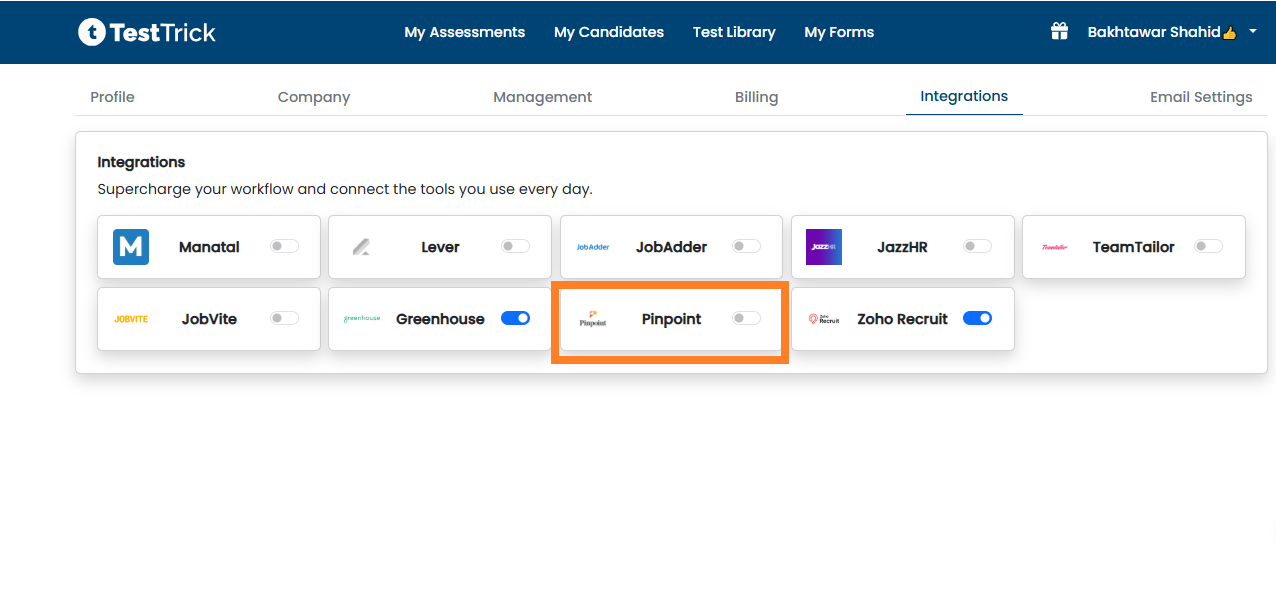
- Navigate to Settings → Integrations.
- Locate the Pinpoint integration and click Enable.
- Once enabled, your unique API Key will be displayed. Copy it — you’ll need it in the next step.
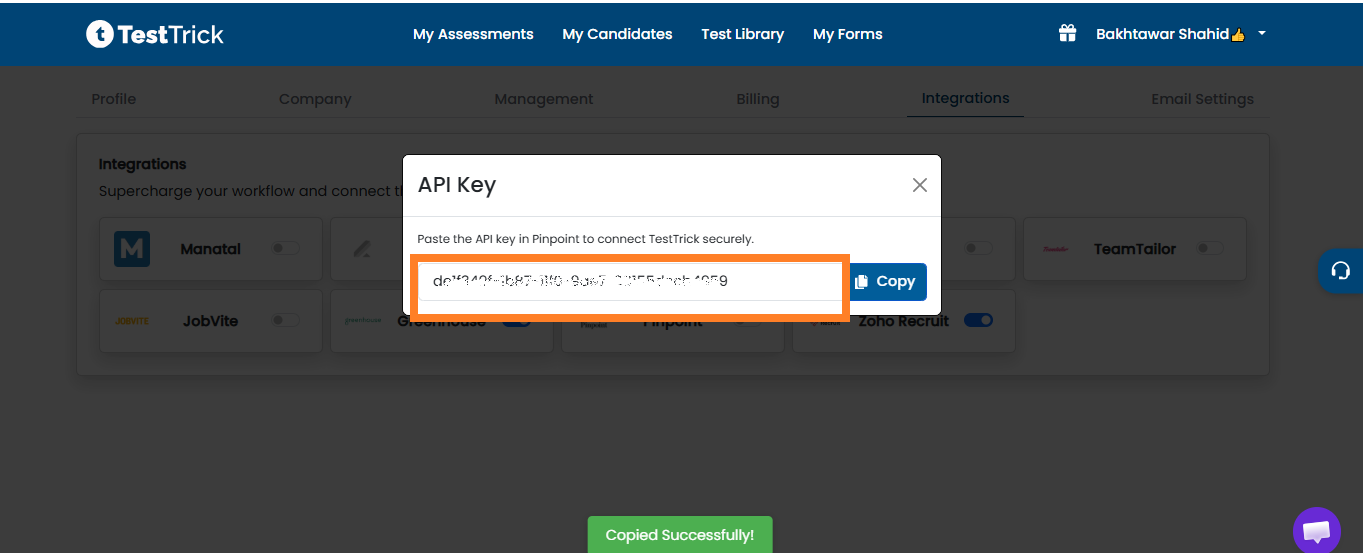
Note: The API key is tied to your TestTrick account. Keep it secure and do not share it publicly.
Step 2: Add TestTrick in Pinpoint
- In Pinpoint, go to Settings → Integrations in the sidebar.
- In the Apps tab, search for TestTrick and click Add.
- Enter your TestTrick API Key.
- Click Save to store the API key.
- Once saved, click Enable to activate the integration.
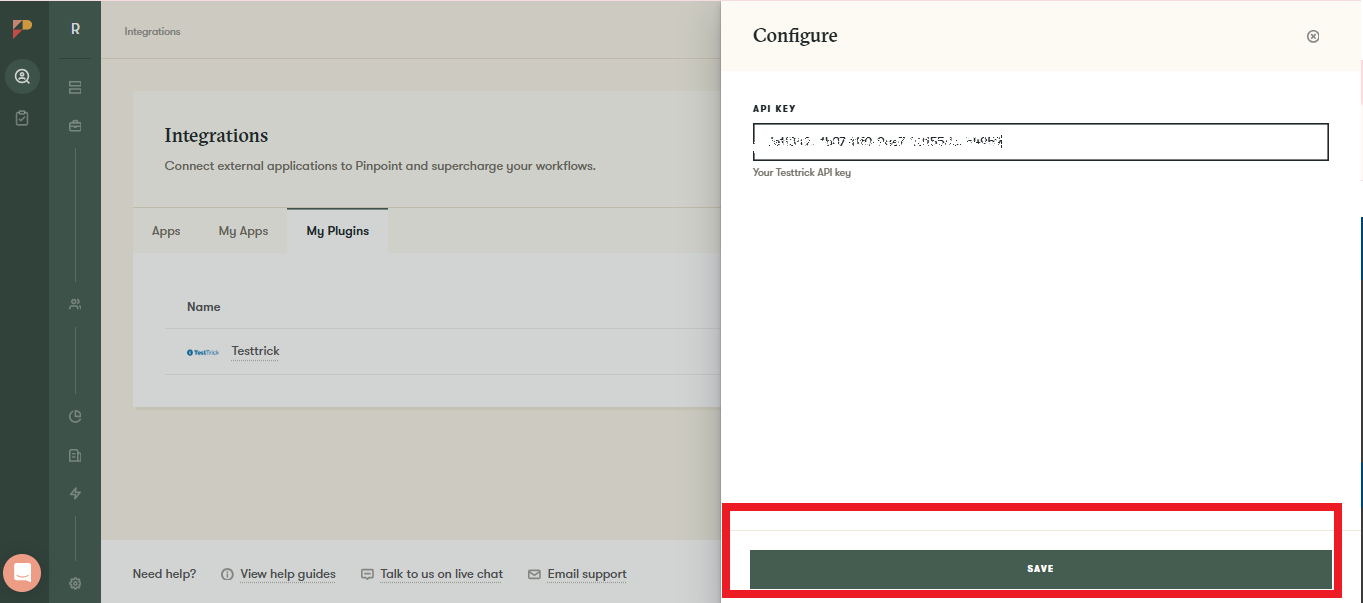
The integration will validate your API key automatically the first time a recruiter attempts to send an assessment. If the key is invalid, an error message will be displayed.
How do I send a candidate a TestTrick assessment?
Once the integration is active, you can invite candidates to a TestTrick assessment directly from their application page in Pinpoint.
- Open the candidate’s application in Pinpoint.
- Click the additional options menu (three dots in the top-right corner) and select Send TestTrick Assessment.
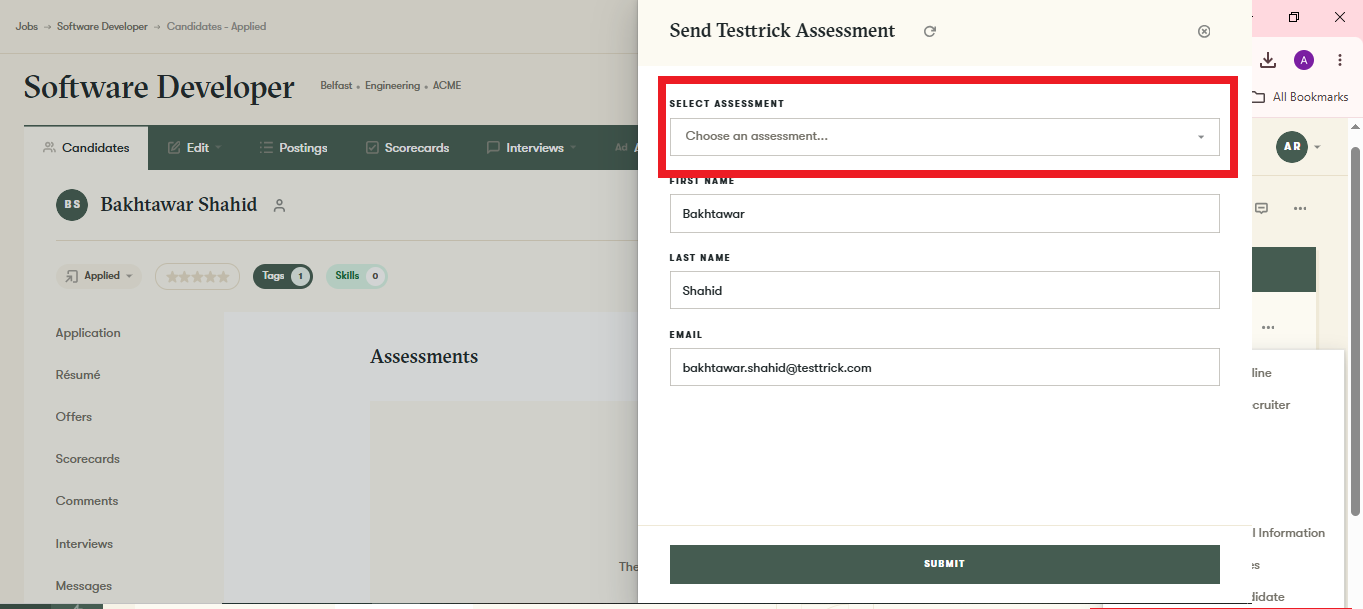
- A side panel will open with the candidate’s first name, last name, and email address pre-filled automatically.
- Use the Select Assessment dropdown to choose which TestTrick assessment to send.
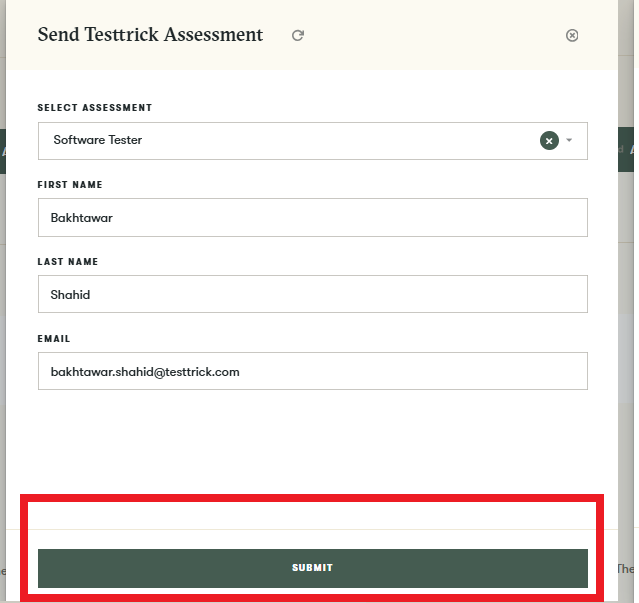
- Review the details and make any changes if needed.
- Click Send Submit.
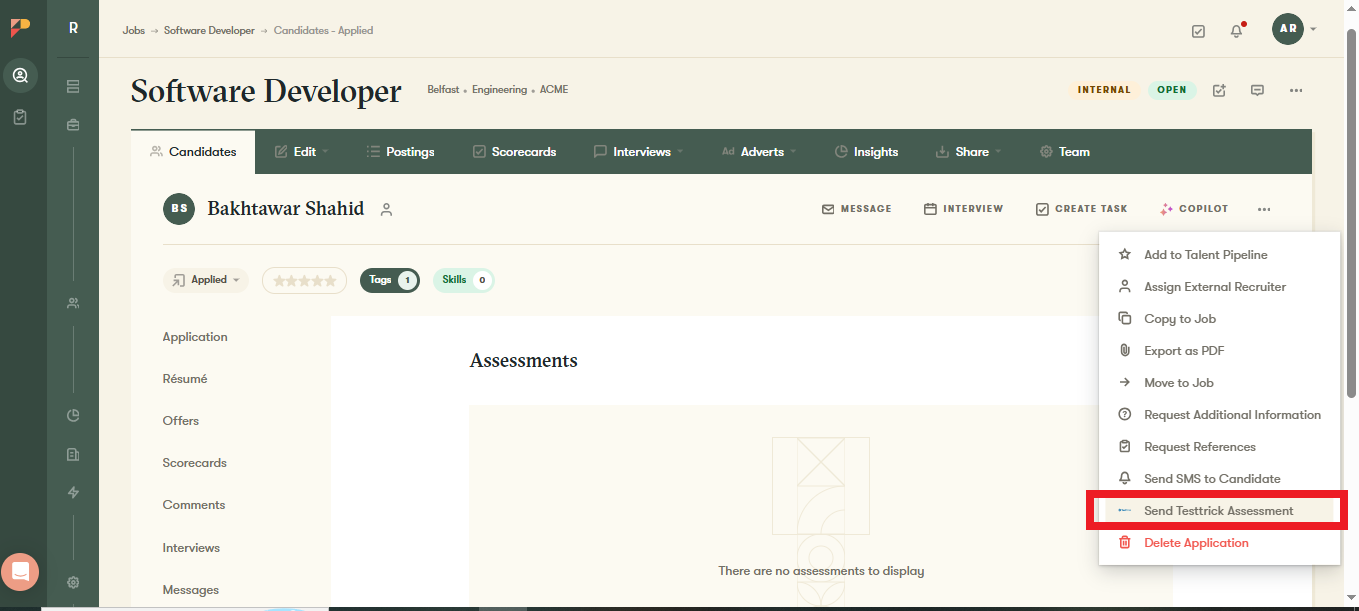
Note: Each candidate can only be invited to a given assessment once. Duplicate invitations for the same assessment are not allowed.
How do I track a candidate’s assessment progress?
- An Assessments tab will appear on the candidate’s application page.
- The assessment card displays the current status such as Pending, In Progress, or Completed.
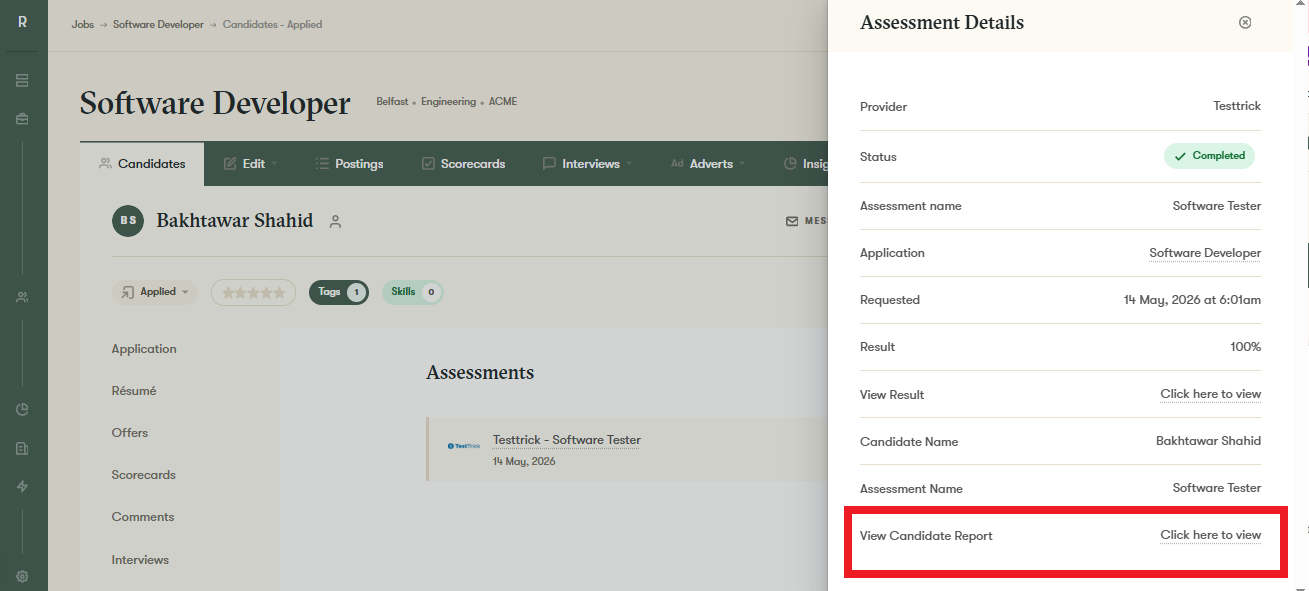
- Click the assessment card to view additional details, including the assessment name and status.
- Once the candidate completes the assessment, Pinpoint will update automatically in real time.
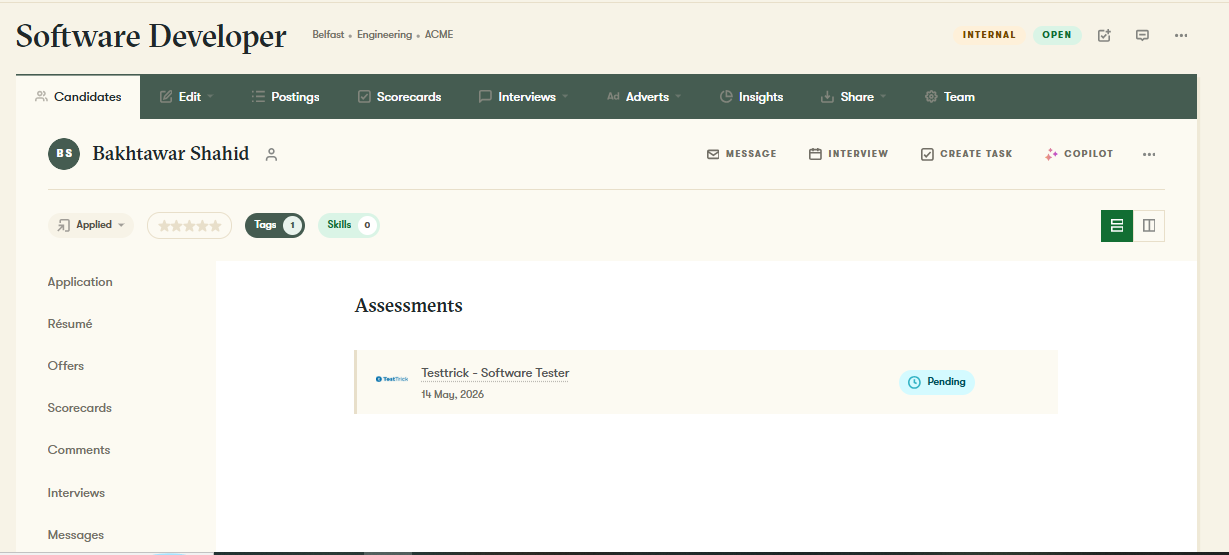
Note: Status updates are sent in real time by TestTrick as the candidate progresses through the assessment.
What happens when a candidate completes the assessment?
- • The assessment card updates to Completed.
- • The candidate’s average score percentage is displayed directly on the card.
- • A View Candidate Report link appears, allowing recruiters to open the full TestTrick report.
- • The hiring team receives an email notification once the assessment is completed.
Frequently asked questions(FAQs)
Curious about TestTrick? Here are the answers to some frequently asked questions about our company.
Contact Us
FlyPearls LLC. 8 The Green # 4367 Dover, DE 19901 United States
+1 302 261 5361